
|
UserForms Presentation
|
|
Access Lunchtime hosted by Maria Barnes 25 August 2026
UserForms_presentation_s4p.pdf
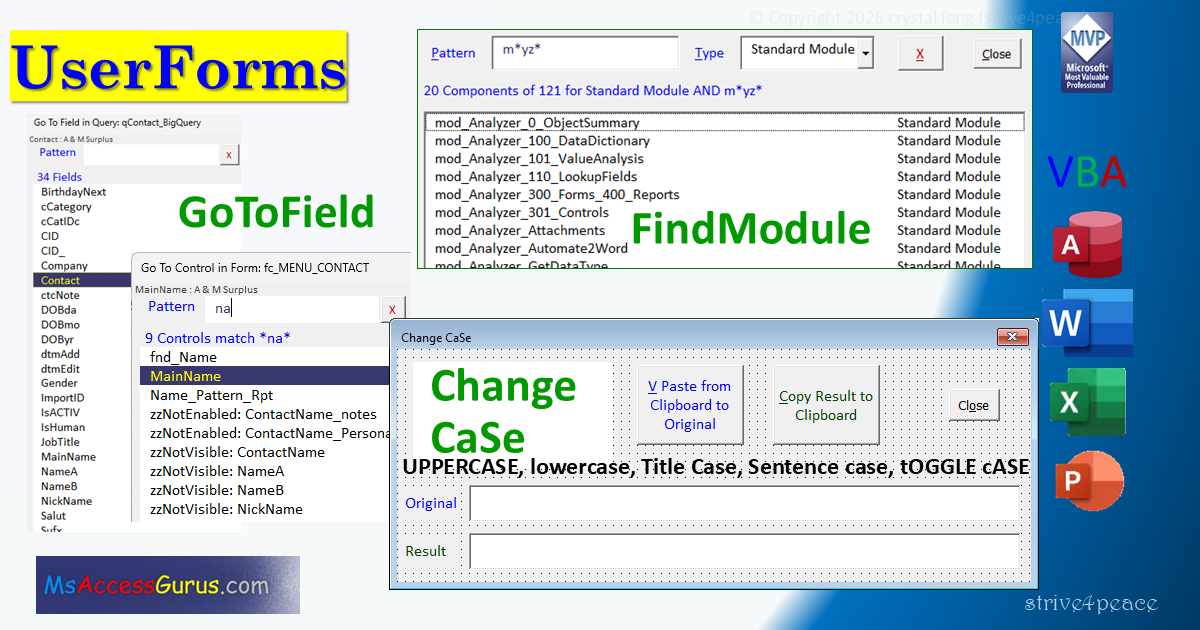
Go To Field or Control
https://msaccessgurus.com/tool/Userform_GoToField.htm
Find Module and other VB components
click to watch on YouTube: AL: Exploring UserFoms with Crystal Long - Access, Word, Excel, PowerPoint, VBA applications (46:15)
Read the video description on YouTube for more information and links
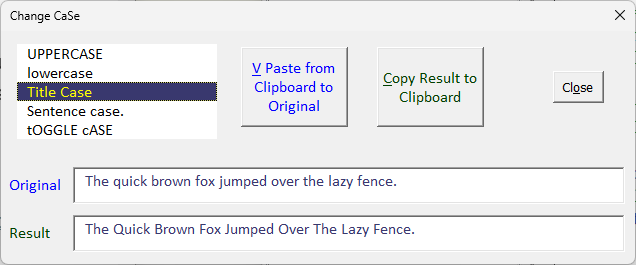
Create a UserForm to change case of text: UPPERCASE, lowercase, Title Case, Sentence case, tOGGLE cASE
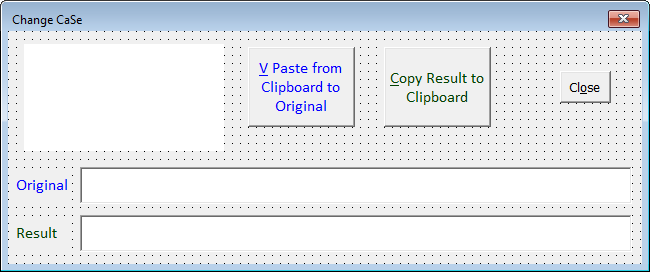
This is what the UserForm will look like in design view after controls have been added
| Appearance | |
| Caption | Change CaSe |
| Behavior | |
| (Name) | uform_ChangeCase |
| ShowModal | False |
| Position Make the userform bigger for designing then come back and set these after controls are added. | |
| Height | 204 |
| Left | 0 |
| Top | 0 |
| Width | 485 |
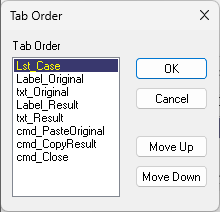
| (Name) | Lst_Case |
| Appearance | |
| Caption | Choose CaSe for the Result |
| BackColor | Windows Background (White) |
| BorderStyle | 0 - fmBorderStyleNone |
| ForeColor | Window Text (Black) |
| SpecialEffect | 0 - fmSpecialEffectFlat |
| Data | |
| ColumnCount | 2 |
| ColumnWidths | 0 pt;150 pt |
| Font | |
| Font | Calibri, 12 point |
| Position | |
| Height | 80 |
| Left | 12 |
| Top | 10 |
| Width | 150 |
| (Name) | Label_Original |
| Appearance | |
| BackColor | Windows Background (White) |
| BorderStyle | 0 - fmBorderStyleNone |
| ForeColor | Window Text (Black) |
| SpecialEffect | 2 - fmSpecialEffectSunken |
| Font | |
| Font | Calibri, 12 point |
| Position | |
| Height | 28 |
| Left | 54 |
| Top | 102 |
| Width | 414 |
| (Name) | txt_Result |
| Appearance | |
| Caption | |
| BackColor | Windows Background (White) |
| BorderStyle | 0 - fmBorderStyleNone |
| ForeColor | Window Text (Black) |
| SpecialEffect | 2 - fmSpecialEffectSunken |
| Font | |
| Font | Calibri, 12 point |
| Position | |
| Height | 28 |
| Left | 54 |
| Top | 138 |
| Width | 414 |
| (Name) | Label_Original |
| Appearance | |
| Caption | Original |
| BackStyle | 0 - fmBackStyleTransparent |
| BorderStyle | 0 - fmBorderStyleNone |
| ForeColor | Blue |
| SpecialEffect | 0 - fmSpecialEffectFlat |
| Font | |
| Font | Calibri, 12 point |
| Position | |
| Height | 20 |
| Left | 6 |
| Top | 108 |
| Width | 42 |
| (Name) | Label_Result |
| Appearance | |
| Caption | Result |
| BackStyle | 0 - fmBackStyleTransparent |
| BorderStyle | 0 - fmBorderStyleNone |
| ForeColor | Green |
| SpecialEffect | 0 - fmSpecialEffectFlat |
| Font | |
| Font | Calibri, 12 point |
| Position | |
| Height | 20 |
| Left | 6 |
| Top | 144 |
| Width | 42 |
| (Name) | cmd_PasteOriginal |
| Appearance | |
| Caption | V Paste from Clipboard to Original |
| BackColor | Gray, Button Face |
| ForeColor | Blue |
| Behavior | |
| WordWrap | TRUE |
| Font | |
| Font | Calibri, 12 point |
| Misc | |
| Accelerator | V |
| Position | |
| Height | 60 |
| Left | 180 |
| Top | 12 |
| Width | 80 |
| (Name) | cmd_CopyResult |
| Appearance | |
| Caption | Copy Result to Clipboard |
| BackColor | Gray, Button Face |
| ForeColor | Green |
| Behavior | |
| WordWrap | TRUE |
| Font | |
| Font | Calibri, 12 point |
| Misc | |
| Accelerator | C |
| Position | |
| Height | 60 |
| Left | 282 |
| Top | 12 |
| Width | 80 |
| (Name) | cmd_Close |
| Appearance | |
| Caption | Close |
| BackColor | Gray, Button Face |
| ForeColor | Window Text (Black) |
| Font | |
| Font | Tahoma, 10 pt |
| Misc | |
| Accelerator | o |
| Position | |
| Height | 24 |
| Left | 414 |
| Top | 30 |
| Width | 38 |
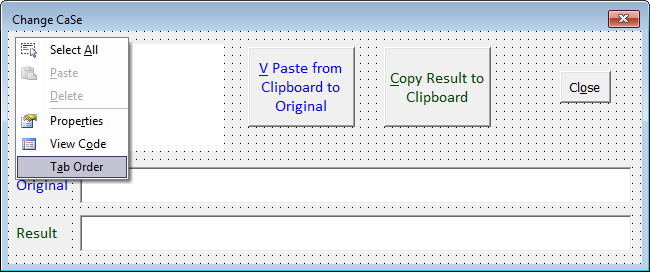
'The quick brown fox jumped over the lazy fence.

'*************** Code Start *****************************************************
' code behind userform: uform_ChangeCase
'-------------------------------------------------------------------------------
' Purpose  : Switch CaSe of text between
'              UPPERCASE, lowercase, Title Case,
'              Sentence case, and tOGGLE cASE
' Author   : crystal (strive4peace)
' instructions to create this userform:
'   https://msaccessgurus.com/presentation/Userforms.htm
' LICENSE  :
'   You may freely use and share this code, but not sell it.
'   Keep attribution. Mark changes. Use at your own risk.
'------------------------------------------------------------------------------
'           to Run!
'------------------------------------------------------------------------------
' 1. in the Project Explorer, select:  uform_ChangeCase
'        press F5 to Run!
'        or from the menu, choose Run, Run Sub/UserForm
' OR 2. in VBA or Immediate window:    uform_ChangeCase.Show
' LICENSE  :
'   You may freely use and share this code, but not sell it.
'   Keep attribution. Mark Changes. Use at your own risk.
'-------------------------------------------------------------------------------
'  LATE binding is used. for EARLY binding:
'      Microsoft HTML Object Library ( MSHTML )
'-------------------------------------------------------------------------------

Option Compare Binary  'upper and lower case not the same
Option Explicit  'declare variables

Private Sub UserForm_Initialize()
'260823,24
' Set Original text to contents of Clipboard.
' Load listbox with CaSe types.

   'CALLs
   '  ClipboardGetText

   Dim vList() As Variant

   'paste from Clipboard to Original text
   Me.txt_Original.Value = ClipboardGetText()

   'arrays start with 1
   ReDim vList(1 To 5,1 To 2)
   '1. Value
   '2. Example

   vList(1,1) = 3: vList(1,2) =  "UPPERCASE" 'msoCaseUpper
   vList(2,1) = 2: vList(2,2) =  "lowercase" 'msoCaseLower
   vList(3,1) = 4: vList(3,2) =  "Title Case" 'msoCaseTitle
   vList(4,1) = 1: vList(4,2) =  "Sentence case." 'msoCaseSentence
   vList(5,1) = 5: vList(5,2) =  "tOGGLE cASE" 'msoCaseToggle

   With Me.Lst_Case
      .List = vList
      'set default to Title Case
      'thanks to Neil Sargent for this tip!
      .Selected(2) = True  '3rd item in list is index 2
   End With
   'calculate and show the Result
   Call DoChangeCase

End Sub

Private Sub cmd_Close_Click()
'260823 Unload userform when click Close button
   Unload Me
End Sub

'=========================================== DoChangeCase
Private Sub Lst_Case_Click()
'260823
   'Calculate and show the result
   Call DoChangeCase
End Sub
Private Sub txt_Original_AfterUpdate()
'260823,24
   'Calculate and show the result
   Call DoChangeCase(True)
End Sub

Private Function DoChangeCase( _
      Optional pbSayMessage As Boolean = False _
   ) As Boolean
'260823
'Calculate and show the Result
'by changing case of Original text
'whatever way the user selects

   Dim vsOriginal As Variant
   Dim vsResult As Variant
   Dim nCaseResult As Long
   Dim i As Integer

   Dim asSentence() As String

   DoChangeCase = False

   vsOriginal = Null
   vsResult = Null

   vsOriginal = Me.txt_Original.Value

   With Me.Lst_Case
      If IsNull(.Value) Then
         .SetFocus
         If pbSayMessage <> 0 Then
            MsgBox  "Choose CaSe for result text" _
               ,, "Can't convert"
         End If
         Exit Function
      End If
      nCaseResult = .Value
   End With  'Me.Lst_Case

   vsResult =  ""
   If vsOriginal <>  "" Then
      Select Case nCaseResult
      Case 3  'UPPERCASE
         vsResult = UCase(vsOriginal)
      Case 2  'lowercase
         vsResult = LCase(vsOriginal)
      Case 4  'Title Case
         vsResult = StrConv(vsOriginal,vbProperCase)  '3
      Case 1  ' Sentence case.
         asSentence = Split(vsOriginal, ". ")
         For i = LBound(asSentence) To UBound(asSentence)
            vsResult = vsResult _
               & UCase(Left(asSentence(i),1)) _
               & IIf(Len(asSentence(i)) > 1 _
                  ,LCase(Mid(asSentence(i),2)) _
                  , "") _
               & IIf(i <> UBound(asSentence), ". ", "")
         Next i  ' Sentence
      Case 5  'tOGGLE cASE"
         'Option Compare Binary at top for binary compare
         For i = 1 To Len(vsOriginal)
            If Mid(vsOriginal,i,1) _
               <> LCase(Mid(vsOriginal,i,1)) _
            Then
               vsResult = vsResult & LCase(Mid(vsOriginal,i,1))
            Else
               vsResult = vsResult & UCase(Mid(vsOriginal,i,1))
            End If
         Next i  ' tOGGLE
      End Select
   End If

   Me.txt_Result.Value = vsResult

   DoChangeCase = True

End Function

'=========================================== Clipboard
Private Sub cmd_CopyResult_Click()
'260823
   'Copy the Result to the Clipboard
   ClipboardSetText (Me.txt_Result.Value)
End Sub

Private Sub cmd_PasteOriginal_Click()
'260823
   'Paste what's on the Clipboard to Original
   Me.txt_Original.Value = ClipboardGetText()
   'calculate and show the Result
   Call DoChangeCase
End Sub

'==============================================================================
' from module: mod_Clipboard_MSHTML_s4p
' full module is here:
'     https://msaccessgurus.com/VBA/Clipboard_MSHTML.htm
' must use variants for this to work right
'-------------------------------------------------------------------------------
'  LATE binding is used. for EARLY binding:
'      Microsoft HTML Object Library ( MSHTML )
Public Sub ClipboardSetText(ByVal pvText As Variant)
'240612 strive4peace
   With CreateObject("htmlfile")    'HTMLDocument
      .parentWindow.clipboardData.setData  "Text", pvText
   End With
End Sub

Public Function ClipboardGetText() As Variant
'240612
   With CreateObject("htmlfile")
      ClipboardGetText = .parentWindow.clipboardData.getData("Text")
   End With
End Function
'==============================================================================

'*************** Code End ******************************************************
List property (Microsoft Forms)