Notes
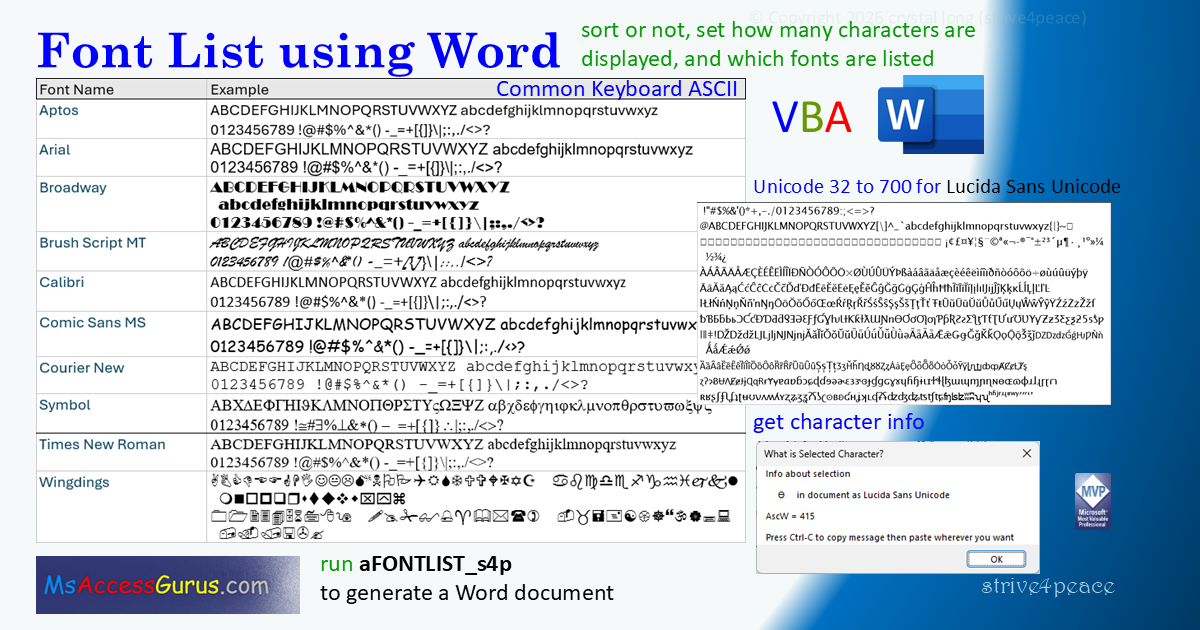
What fonts are installed and what does each one look like?
When you open the download document, Word_FontList_s4p.docm,
there are notes and instructions to run aFONTLIST_s4p.
The code is open, not protected,
so you can learn from it,
customize it,
and give me modified VBA to make it better for everyone.
Run
aFONTLIST_s4p
(Alt-F8 for Macros list).
The name starts with 'a' so should be at the top of the list.
A Word document is created with a list of all the fonts installed on your computer,
and examples of what characters look like in each.
That's the real reason for this tool.
By default, to keep it short but long enough,
the example for each font is common keyboard characters with
uppercase letters,
lowercase letters, digits, punctation, and some special characters.
Run the procedure without changing anything and
within a minute or so,
you'll get a great list,
maybe even worthy of printing and using for wall paper.
Look in the lower left of the Word document window
as the code is running to read the status bar
and see where it's at.
VBA turns on the Status Bar in Word and writes messages.
It also leaves the status bar showing but clears the message.
In aFONTLIST_s4p, you can modify the variables that set parameters that are sent to FontList_s4p_Word,
which is what creates the document and its contents,
for different outputs.
Variables
Variables you can set.
All are optional and have a default if not specified.
| Variable |
Description |
|
nEndExample As Long
|
choose characters to show
- 0 (default) = Common keyboard characters
- 1 = ASCII
- 2 = ASCII and Extended ASCII
- ≥ 32 shows Unicode characters for decimal value 32 and above using ChrW()
ending with whatever is specified
|
|
bSort As Boolean
|
True to sort by font name when done.
Default = False.
|
|
bWatch As Boolean
|
True to watch as Word document is written
(takes more time but is sometimes necessary to ensure better accuracy marking the font
if you're listing several hundred characters in each table cell.
However, if the specified font doesn't have characters defined for a point specified,
then it seems that Word will sometimes automatically choose another font).
Default = False.
|
|
sFontname As String
|
specify to limit output to only one font
|
|
sFontlist As String
|
specify to limit output to a list of fonts
|
|
sNameDescription As String
|
text to include in filename
|
|
nStartExample As Long
|
start point for Unicode characters to show. Under 32 not allowed.
Default is zero or not set, and 32 will be used.
|
Instead of listing font names yourself (sFontlist),
you can specify a wildcard pattern (sWildPattern)
for Word to build a list of font names
that match a pattern such as *What* where What is what you want to match
like all font names that include
Aptos, Calibri, Arial, Verdana, Script, Bold, ding, or Mono in the name.
Additional procedures
WhatIsSelectedCharacter()
When you're looking at a document, any document,
you can select a character
and run
WhatIsSelectedCharacter()
to get information
about the (first) character selected.
This procedure reads the current selection in Word and
gives information in a message box.
It shows the character*,
and reports the results of
Asc()
and
AscW()
on the rendered character.
Code makes an adjustment if a negative number is returned for ChrW()
since only positive numbers were used to create the characters.
Negative numbers are okay for ChrW but you can't enter them using your keyboard
(or if you can, I don't know how).
*Displaying a message to the user showing the selected character
uses Daniel Pineault's
Unicode_MsgBox
function
to show Unicode better
~ — although that's not perfect, but better.
However, even though a message box that can show Unicode is used
as opposed to the standard Access MsgBox,
the message font isn't the same as whatever you're selecting
so maybe the representation isn't right either.
InputCharGetAsc()
Get numeric return from the Asc() function for a character you type
on the keyboard when prompted.
When you press a key on your keyboard, a numeric code is sent to the processor,
not the actual character printed on the key.
On a standard keyboard, when you press capital A, 65 is sent whereas
when you press little a, 97 is sent.
Character encoding
Character encoding defines how numbers correspond to a visual representation.
Each number is called a code point.
Some points include actions.
ASCII and UTF-8 are different encoding methods.
ASCII
ASCII stands for the "American Standard Code for Information Interchange".
It was designed decades ago so different systems
could exchange files.
Other conventions are often built on ASCII.
The ASCII set contains 128 characters,
some of which also are used for device control
... from 0 to 127,
which can be represented with 7 bits
64+32+16+8+4+2+1=127
The points below 32 are for device control such as
Line Feed, Carriage Return, Line Feed, Bell, and Escape.
32 is a space character.
Then come numbers, uppercase letters lowercase letters,
with punctuation and special characters in between.
ANSI
It seems that ANSI has no standard specification that everyone agreed on.
There are different conventions.
Extended ASCII
Extended ASCII adds 1 more bit than ASCII
so possibities add the range from 128 to 255.
127+128=255
While ASCII was pretty much adopted,
the Extended ASCII set was in dispute.
Many languages wanted to add characters that English doesn't use,
and different people had different ideas.
And 128 more characters really wasn't much.
There needed to be more, many more, standard universal characters.
That's where Unicode steps in.
Unicode
Unicode is separated into named blocks,
each containing a varying number of points.
A point defines the visual symbol for a number.
The first block is based on ASCII.
There are multiple ways of storing (encoding) Unicode
UTF-8
UTF stands for Unicode Transformation Format,
and the 8 means 8-bit,
which is the minimum size since it can grow.
UTF-8 can string on more bytes as needed.
Because it sends less down the wire,
it is the method usually used to transmit webpages.
The idea for UTF-8 was written on a napkin in a diner.
It was designed for backward compatibility with ASCII
and set up so that characters would use minimum space to store.
UTF-8 is one of the ways that Unicode can be encoded,
and only uses bytes beyond the first as needed.
Other forms of Unicode have set sizes.
UTF-16 is fixed at 2 bytes per code point.
UTF-32 is fixed at 4 bytes per code point.
Unicode
A whole lot can be said about Unicode.
Suffice it to say, there are a lot of characters you can look up and use.
A point is a number that corresponds to one symbol and
appears or not
depending on what font is being used and what's defined.
Some fonts are specifically designed for Unicode
like Lucida Sans Unicode
and have more points defined than average.
Common fonts are good choices for more points,
like Arial, Times New Roman, Calibri, and perhaps Aptos.
VBA functions to switch between number and character
Asc() function
The Asc() function is short for ASCII
although what it returns may be ANSI (also loosely defined).
There was a lot of dispute over what the 'entended' range should be.
Given a character, the Asc() function returns its number.
AscW() function
The AscW() function is a wide version of Asc() to include some of Unicode.
Chr() function
The Chr() function is used to convert a number into a character.
ChrW() function
ChrW() is the wide version to return a Unicode character; and
you may need to change the display font to show it properly.
function notes
Some fonts render characters defined in the
128-255 range as generated by the Chr() function,
and decrypted using Asc()
but they don't compare to the Unicode points for that font —
mostly not anyway, or not at all.
You can see this if you compare the Extended ASCII output
vs Unicode to 255 in the FontList documents.
You can use the WhatIsSelectedCharacter sub to find out
the Chr() and ChrW value for a character.
VBA
- mod_Word_FONTLIST_s4p
- mod_Word_NewTable_s4p
- mod_Word_SelectedChar_s4p
module: mod_Word_FONTLIST_s4p
Option Compare Text
Option Explicit
'...260310+
'*************** Code Start *****************************************************
' module name: mod_Word_FONTLIST_s4p
'-------------------------------------------------------------------------------
' Purpose  : VBA to create a list of Fonts installed in Windows using Word
'              look at application Status Bar in lower left to see progress
' Author   : crystal (strive4peace)
' Code List: https://msaccessgurus.com/code.htm
' This code: https://msaccessgurus.com/tool/Word_FontList.htm
' LICENSE  :
'   You may freely use and share this code, but not sell it.
'   Keep attribution. Mark your changes. Use at your own risk.
'-------------------------------------------------------------------------------
'-------------------------------------------------------------------------------
'                       aFONTLIST_s4p
'-------------------------------------------------------------------------------
Public Sub aFONTLIST_s4p()
'sets up parameters for FontList_s4p_Word
'     and runs it
's4p 260301...10
'modify, comment, uncomment what you want

   '                CLICK HERE
   '                Press F5 to Run!
   ' CALLs
   '  FontList_s4p_Word

   Dim bSort As Boolean  'sort font list by name when done
   Dim bWatch As Boolean  'watch as Word document is written to
   Dim nEndExample As Long  'end point for characters to show if >2 and >=32
   Dim sFontname As String  'limit output to only one font
   Dim sFontlist As String  'limit output to a list of fonts
   Dim sWildPattern As String  'wildcard pattern for font names
   Dim sDescriptionFont As String  'text to include in filename

   Dim nStartExample As Long  'start point for Unicode characters to show.
   '  Under 32 not allowed, must be >=nEndExample for Unicode

   Dim vFont As Variant  'for looping FontNames collection for sWildPattern

   '=================================================================
   '------------------------------------------- CUSTOMIZE
   '   if all parameters are commented will use defaults:
   '     show a sample of all installed fonts
   '     for common keyboard characters
   '-------------------------------------------
   ' use none or one value for each parameter
   '  examples are commented so you can turn them on and change if desired
   '-------------------------------------------
   '------------------------- bSort
'   bSort = False 'Default, don't sort, show as they are
'   bSort = True 'sort by font name when done
   '------------------------- bWatch
'   bWatch = False 'Default -- runs faster!
'   bWatch = True  'watch progress -- takes more time, can be more accurate
   '------------------------- nEndExample for a specific list OR AscW()
   'before ASCII 32 (space) are control characters
   '  so 32 is the first character allowed
   '-------------------------
'   nEndExample = 255

   'specific list -- uses ASCII, Chr()
'   nEndExample = 0 'Common keyboard characters, space between each set
'   nEndExample = 1 'ASCII from 32
'   nEndExample = 2 'ASCII+Extended ASCII, from 32 to 255

   'use Unicode, ChrW()
   '----  >=32 is Last Unicode decimal character to show
'   nEndExample = 255 'correlate to Extended ASCII
'   nEndExample = 1000
   '-------------------------
   '------------------------- nStartExample for AscW()
   'if not defined, will be set to 32
'   nStartExample = 32 'or greater, must be less than nEndExample

   '-------------------------------------- Fonts
   '------------------------- sFontname
'   sFontname = "" 'Default all fonts
'   sFontname = "Calibri"
'   sFontname = "Aptos"
'   sFontname = "Lucida Sans Unicode"
'   sFontname = "Unicode MS"
'   sFontname = "Arial"
'   sFontname = "Times New Roman"
'   sFontname = "Tahoma"
'   sFontname = "Cambria Math"
'   sFontname = "Segoe UI Symbol"
   '------------------------- sFontlist
   '                          sDescriptionFont
   ' sDescriptionFont is text to include in filename
   'sFontlist = "" 'default if not specified: show all fonts
   'to limit fonts to a list:
   '  begin, end, and delimit with ~
   '  no extra spaces

'   sDescriptionFont = "Common_fonts"
'   sFontlist = "~" _
'      & "Arial~Times New Roman~" _
'      & "Courier New~" _
'      & "Symbol~" _
'      & "Aptos~Calibri~" _
'      & "Broadway~Comic Sans MS~" _
'      & "Brush Script MT~Wingdings~"

   ' fair Unicode coverage
'   sDescriptionFont = "Unicode_fonts"
'   sFontlist = "~Lucida Sans Unicode~" _
'      & "Times New Roman~Arial~"

   ' symbols
'   sDescriptionFont = "Symbols"
'   sFontlist = "~Wingdings~Wingdings 2~" _
'      & "Wingdings 3~Webdings~Convection Symbol~" _
'      & "MS Outlook~MS Reference Specialty~" _
'      & "MT Extra~"
   '------------------------- sWildPattern
   '                          sDescriptionFont
   ' instead of listing fonts yourself,
   '     have VBA make a list of typefaces for sFontlist
   '     that match a pattern.
   '     This takes priority if set.
'   sWildPattern = "" 'default if not specified
'   sDescriptionFont = "Aptos_Family"
'   sWildPattern = "Aptos*"
'   sDescriptionFont = "Arial_Family"
'   sWildPattern = "Arial*"
'   sDescriptionFont = "Lucida_Family"
'   sWildPattern = "Lucida*"
'   sDescriptionFont = "Segoe_Family"
'   sWildPattern = "Segoe*"
'   sDescriptionFont = "Verdana_Family"
'   sWildPattern = "Verdana*"

'   sDescriptionFont = "Mono_fonts"
'   sWildPattern = "*Mono*"
'   sDescriptionFont = "Black_fonts"
'   sWildPattern = "*Black*"
'   sDescriptionFont = "Bold_fonts"
'   sWildPattern = "*Bold*"
'   sDescriptionFont = "Script_fonts"
'   sWildPattern = "*Script*"
'   sDescriptionFont = "Hand_fonts"
'   sWildPattern = "*Hand*"
'   sDescriptionFont = "dings_fonts"
'   sWildPattern = "*dings*"

   '------------------------------------------- example
   ' if choosing a lot of points, maybe limit to just one or a few fonts
   ' However, Word seems to use other fonts whenever it wants
   ' so the Font being listed may not be the font for all the characters
   ' points 8448-11903 include the following blocks:
   ' Letterlike Symbols, Number Forms, Arrows, Mathematical Operators
   ' , Miscellaneous Technical, Control Pictures, OCR, Enclosed Alphanumerics
   ' , Box Drawing, Block Elements, Geometric Shapes, Miscellaneous Symbols
   ' , Dingbats, Miscellaneous Mathematical Symbols, Supplemental Arrows
   ' , Braille Patterns, (Miscellaneous other stuff)
'   nStartExample = 8448
'   nEndExample = 11903
   '------------------------------------------- end customize

   '=================================================================

   '-------------------- if wildcard pattern was specified, build font list
   If sWildPattern <>  "" Then
      sFontlist =  "" 'clear, this takes priority
      'build list of names that match pattern
      For Each vFont In FontNames
         If vFont Like sWildPattern Then
            sFontlist = sFontlist & vFont &  "~"
         End If
      Next vFont
      'if fonts were found, add beginning ~
      If sFontlist <>  "" Then
         'add ~ to beginning of list
         sFontlist =  "~" & sFontlist
         'clear specific font name if set
         sFontname =  ""
      Else
         MsgBox  "No font names match wildcard pattern:" _
            & vbCrLf & sWildPattern _
            & vbCrLf &  "Change variables and try again" _
            ,, "No font names in specified list"
         Exit Sub
      End If
   End If
   '--------------------

   '=================================================================

   '-------------------- Call FontList_s4p_Word
   Call FontList_s4p_Word( _
      nEndExample,bSort,bWatch _
      ,sFontname,sFontlist _
      ,sDescriptionFont,nStartExample)

End Sub

'-------------------------------------------------------------------------------
'                       FontList_s4p_Word
'-------------------------------------------------------------------------------
Sub FontList_s4p_Word( _
   Optional pnEndExample As Long = 0 _
   ,Optional pbSort As Boolean _
   ,Optional pbWatch As Boolean _
   ,Optional psFontname As String _
   ,Optional psFontlist As String _
   ,Optional psDescriptionFont As String =  "" _
   ,Optional ByVal pnStartExample As Long = 0 _
   )
'220420 strive4peace,2205,2602...260310
'make a new Word document showing installed fonts
'  and examples of their characters

   'CALLS
   '  Word_Margins_Narrow
   '  Styles_FontList_s4p
   '  Word_NewTable_s4p
   '  Word_TableBorders_s4p
   '  WriteHeader_s4p_FontList
   '  WordDocumentSaveClose

   'PARAMETERs
   '  pnEndExample determines how many example characters to show
   '        if not set, show short examples
   '        0 for short -- uppercase, lowercase, digits
   '        1 ASCII 32 to to 127
   '        2 Extended ASCII 32 to 255
   '        ---
   '        >=32 is Last Unicode decimal value from 32
   '           if symbol is defined in 128-255,
   '           won't often be the same as Extended ASCII
   '
   '  pbSort is True to sort by font name when done
   '  pbWatch is True to watch as document is built
   '  psFontname is specified if output should just be for 1 font name
   '  psFontlist is specified as "~Font1~Font2~"
   '     beginning, ending, and delimited with ~
   '  psDescriptionFont for text to include in filename
   '  pnStartExample start Unicode at number. Set to 32 (space) if less

   '  LIMIT_dev: if >0 then
   '     stop writing table after LIMIT_dev number of fonts
   '     BE CAREFUL IF YOU CHANGE THIS
   Const LIMIT_dev As Long = 0  'developer change if desired

   On Error GoTo Proc_Err

   'early binding
   Dim oDoc As Document
   Dim oRange As Range
   Dim oTable As Table

   Dim sDocName As String _
      ,sDescriptionExample As String _
      ,sTextExample As String _
      ,sMsg As String _
      ,sMsgAttrib As String _
      ,sNameRows As String _
      ,sPathReturn As String _
      ,sPathFile As String _
      ,sgTimer As Single _
      ,sChar As String

   Dim n As Long _
      ,nRow As Long _
      ,nFonts As Long _
      ,nFontCount As Long _
      ,nLen As Long

   Dim vsFontname As Variant

   Dim aHeadArray(1 To 2) As String

   sgTimer = Timer

   If pnStartExample < 32 Then
      pnStartExample = 32
   End If

   If pnEndExample > 2 Then
      If pnEndExample < 32 Then
         MsgBox  "Can't process " & pnEndExample _
         & vbCrLf & vbCrLf _
         &  "Last Unicode character must be at least 32 (space)" _
         ,, "Abort Get FontList"
         Exit Sub
      ElseIf pnEndExample < pnStartExample Then
         MsgBox  "End " & pnEndExample _
         &  " can't be less than Start " & pnStartExample _
         ,, "Abort Get FontList"
         Exit Sub
      End If
   End If

   'count fonts
   nFontCount = FontNames.Count

   If psFontname <>  "" Then
      nFonts = 1
      sNameRows =  ""
   ElseIf psFontlist <>  "" Then
      nFonts = UBound(Split(psFontlist, "~")) - 1
      sNameRows =  "_" & nFonts _
            &  "of" & nFontCount
   Else
      'rows part of filename
      If LIMIT_dev > 0 And LIMIT_dev < nFontCount Then
         'output limited by parameters
         nFonts = LIMIT_dev
         sNameRows =  "_" & nFonts _
            &  "LimitOf" & nFontCount
      Else
         nFonts = nFontCount  'default
         sNameRows =  "_" & nFonts
      End If
   End If

   If nFonts = 0 Then
      MsgBox  "Error, no fonts to display" _
         ,, "Check parameters"
      GoTo Proc_Exit
   End If

   '---------------------------  example string
   sTextExample =  ""
   sDescriptionExample =  ""
   If pnEndExample = 0 Then  'common keyboard characters

      sTextExample = _
         "ABCDEFGHIJKLMNOPQRSTUVWXYZ " _
         &  "abcdefghijklmnopqrstuvwxyz" _
         & vbCrLf _
         &  "0123456789 !@#$%^&*() -_=+[{]}\|;:,./<>? "

   ElseIf pnEndExample = 1 Then  'ASCII
      sDescriptionExample =  "_ASCII"
      For n = 32 To 127  'start, 32=space
         sTextExample = sTextExample & Chr(n)
'         'add space every 10 characters
'         If n Mod 10 = 0 Then
'            sTextExample = sTextExample & " "
'         End If
      Next n
   ElseIf pnEndExample = 2 Then  'Extended ASCII
      sDescriptionExample =  "_ExtendedASCII"
      For n = 32 To 255  'space to 255
         If n = 128 Then
            sTextExample = sTextExample & vbCrLf
         End If
         sTextExample = sTextExample & Chr(n)
      Next n

   'Else

   Else  'UNICODE
      '>2
      sDescriptionExample =  "_Unicode_" _
         & Format(pnStartExample, "0") &  "to" _
         & Format(pnEndExample, "0")
      For n = pnStartExample To pnEndExample
         sChar = ChrW(n)
         'add paragraph before each multiple of 128
         If n Mod 128 = 0 And n <> pnStartExample Then
            sTextExample = sTextExample & vbCrLf
         End If
         sTextExample = sTextExample & sChar
      Next n
   End If  'pnEndExample
   '---------------- END example string

   '--------------------------- Document Name
   sDocName =  "FontList" _
      & sDescriptionExample _
      & IIf(psDescriptionFont <>  "" _
         , "_" & psDescriptionFont _
         ,vbNullString) _
      & sNameRows _
      & IIf(psFontname <>  "" _
         , "_" & psFontname _
      ,IIf(pbSort, "_sort", ""))

Debug.Print
Debug.Print  "------- " & Now() & vbCrLf & sDocName

   '--------------------------- new Word document
   'make new Word document
   Set oDoc = Documents.Add

   'turn off screen updating
   If pbWatch = False Then
      Application.ScreenUpdating = False
   End If

   'turn on Status Bar
   Application.DisplayStatusBar = True
   Application.StatusBar =  "Creating document with list of font names"

   'set narrow page margins
   Call Word_Margins_Narrow(oDoc)

   'attribution
   sMsgAttrib =  "This document was created by VBA code " _
         &  " written by crystal  (strive4peace)  msaccessgurus.com  "

   With oDoc.Range

      '-------------------------- info to describe document
      .InsertAfter sDocName
      .InsertParagraphAfter
      .Paragraphs(.Paragraphs.Count - 1).Style =  "Heading 1"

      .InsertAfter sMsgAttrib
      .InsertParagraphAfter

      .InsertAfter  "Download and information: "
'      .InsertParagraphAfter

      .Collapse 0

      Set oRange = oDoc.Range
      oRange.Collapse 0
      .Hyperlinks.Add Anchor:=oRange _
      ,Address:= "https://msaccessgurus.com/tool/Word_FontList.htm " _
      ,TextToDisplay:= "https://msaccessgurus.com/tool/Word_FontList.htm "

   '260302
   'duct tape

      .Collapse 0
      .InsertParagraphAfter  'didn't seem to get this, uncomment Collapse after
      .Collapse 0
   End With

   Set oRange = oDoc.Range
   With oRange
      .InsertParagraphAfter
      .InsertAfter Format(nFonts, "#,###") &  " font" _
         & IIf(nFonts <> 1, "s", "") &  " listed"
      If pbSort And nFonts <> 1 Then
         .InsertAfter  ", sorted by Font Name"
      End If
      .InsertParagraphAfter
   End With  'oRange

   '  Call Styles_FontList_s4p
   Call Styles_FontList_s4p(oDoc)

   'set range to end of document
   Set oRange = oDoc.Content
   oRange.Collapse (0)  '0=wdCollapseEnd

   '-------------------------- Table

   'make Word table at end of document with
   '  1 row for each font + row for heading
   '  2 columns
   '  skip Caption
   '  Column 1 Head = Font Name
   '  Column 2 Head = Example
   If psFontname <>  "" Then
      aHeadArray(1) = psFontname &  " Font"
   Else
      aHeadArray(1) =  "Font Name"
   End If

   aHeadArray(2) =  "Example"

   '------------- CALL Word_NewTable_s4p
   Application.StatusBar =  "list font names ... table and borders"
   Set oTable = Word_NewTable_s4p( _
      oDoc,oRange _
      ,nFonts + 1 _
      ,2 _
      ,aHeadArray)

   Call Word_TableBorders_s4p(oTable)

   With oTable
      'style Column 1 for Heading 3
      'use selection to do them all
      Application.StatusBar =  "list font names ... style"
      .Columns(1).Select
      Selection.Style = ActiveDocument.Styles( "Heading 3")
      .Cell(1,1).Range.Style =  "Normal"

      'style Column 2
      'hanging 1st line to see where blocks start
      .Columns(2).Select
      With .Range.ParagraphFormat
         .LeftIndent = 6  '~0.1 * 72 'InchesToPoints
         .FirstLineIndent = -6
      End With
      With .Cell(1,2).Range.ParagraphFormat
         .LeftIndent = 0
         .FirstLineIndent = 0
      End With
   End With

   With oTable
      '1. FontName, 2. Example
      '----------------------- Column widths
      .Columns(1).PreferredWidth = CInt(1.8 * 72)
      .Columns(2).PreferredWidth = CInt(5.7 * 72)
   End With

   nRow = 1  'allow for heading row

   With oTable
      'loop through all the fonts
      For Each vsFontname In FontNames
         If psFontname <>  "" Then
            'Limit to only one font
            'redefine whatever found to use same code
            vsFontname = psFontname
         ElseIf psFontlist <>  "" Then
            'if font not in list then loop to next
            If InStr(psFontlist _
               , "~" & vsFontname &  "~") = 0 Then
               GoTo proc_NextFont
            End If
         End If

'developer
If LIMIT_dev > 1 And nRow > nFonts + 1 Then GoTo proc_DoneList

         'increment row
         nRow = nRow + 1
         Application.StatusBar =  "list font names ..." _
           & Format(nRow - 1, "#,##0") _
           &  " of " & Format(nFonts, "#,##0") _
           &  " " & vsFontname

         '------------ write cells
         With .Cell(nRow,1)
            With .Range
               nLen = Len(vsFontname)
               .Text = vsFontname  '& vbCrLf doesn't make it show in NavPane
            End With
         End With

         With .Cell(nRow,2).Range
            .Text = sTextExample
            If pbWatch <> False Then
               'takes longer to watch but more interesting
               'also more accurate for changing font for long examples
               .Select
            End If
            .Font.Name = vsFontname
         End With

proc_NextFont:
         If psFontname <>  "" Then
            'if just one font, stop
            GoTo proc_DoneList
         End If

      Next vsFontname

proc_DoneList:
      '------------------------ sort
      If pbSort And nFonts <> 1 Then
         Application.StatusBar =  "list font names ... sorting"
         .Sort ExcludeHeader:=True _
         ,FieldNumber:=1
      End If

DoEvents

   End With  'oTable

   ' page header with Heading 1, Heading 3, page, numpages
   Application.StatusBar =  "list font names ... header"
   Call WriteHeader_s4p_FontList(oDoc)

   'goto the first page
   '1=wdGoToPage
   '-1=wdGoToLast
   '1=wdGoToFirst
'   With oDoc
'      .GoTo 1, 1
'   End With

Document_Save:
   Application.StatusBar =  "list font names ... SAVE file " & sDocName
   sPathFile = WordDocumentSaveClose(oDoc,sDocName _
      , "strive4peace",,sPathReturn)

   'calculate how much time this process took
   sgTimer = Timer - sgTimer

   sMsg = Format(sgTimer, "#,###.#") &  " seconds"
   If sgTimer > 60 Then
      sMsg = sMsg &  " — " _
         & sgTimer \ 60 &  " minute" _
            & IIf(sgTimer >= 120, "s",Null) _
            &  ", " _
         & Format(sgTimer - (sgTimer \ 60) * 60, "#.#") _
         &  " seconds"
   End If

   '--------------------------- message
   sMsg = Now() &  " done " _
      & IIf(pbWatch,vbCrLf &  ", watch ",Null) _
      & vbCrLf & sMsg

   Debug.Print sMsg

   sMsg =  "Font list document has been created." _
      & vbCrLf & sPathFile _
      & vbCrLf & vbCrLf & sMsg &  " to execute" _
      & vbCrLf & vbCrLf &  "Open the path?"

   If MsgBox(sMsg,vbYesNo, "Done") = vbYes Then
      Call Shell( "Explorer.exe" &  " " & sPathReturn,vbNormalFocus)
   End If

Proc_Exit:
   Set oRange = Nothing
   Set oTable = Nothing
   Set oDoc = Nothing
   Application.StatusBar =  ""
   Application.ScreenUpdating = True
   Exit Sub

Proc_Err:
   MsgBox Err.Description _
       ,, "ERROR " & Err.Number _
        &  "   FontList_s4p_Word"

   Resume Proc_Exit
   Resume
End Sub

'-------------------------------------------------------------------------------
'                       Word_Margins_Narrow
'-------------------------------------------------------------------------------
Public Sub Word_Margins_Narrow(oDoc As Object)
'make margins 0.5 inches on all sides
   With oDoc.PageSetup
      .TopMargin = CInt(0.5 * 72)       'InchesToPoints
      .BottomMargin = CInt(0.5 * 72)    'InchesToPoints
      .LeftMargin = CInt(0.6 * 72)      'InchesToPoints
      .RightMargin = CInt(0.5 * 72)     'InchesToPoints
   End With
End Sub

'-------------------------------------------------------------------------------
'                        WordDocumentSaveClose
'-------------------------------------------------------------------------------
Public Function WordDocumentSaveClose(oDoc As Object _
   ,psFilename As String _
   ,Optional psFolder As String =  "" _
   ,Optional psFormatDateTime As String =  "yymmdd_hhnnss" _
   ,Optional psReturnPath As String _
   ) As String
'220420 strive4peace
'save Word document as file on desktop or in folder
'Return Path\Filename.Ext
'Return Path in psReturnPath
'if psFolder specified, path is that folder on the desktop
'     future: detect if path is absolute and use that instead
'if no file extension specified, default will be added
'oDoc is the document object

' EXAMPLE:
'  CALL WordDocumentSaveClose(oDoc, "Word_Styles_s4p_", "strive4peace",,sPath)

   'PARAMETERS
   '  oDoc is the Word document object
   '  psFilename is what to call the file, with or without an extension
   '  psFolder is a folder name on the desktop
   '  psFormatDateTime is the date/time format to add, "" to skip
   '  psReturnPath is the Path

   'RETURN
   '  Path\Filename.Ext

   'CALLS
   '  GetDesktopPath
   '  MakeAPath

   On Error GoTo Proc_Err

   Dim sPath As String _
      ,sPathFile As String

   'get desktop path ending with \
   sPath = GetDesktopPath(True)

   If psFolder <>  "" Then
      'make or use a folder on the desktop
      sPath = sPath & psFolder &  "\"
      If Dir(sPath,vbDirectory) = vbNullString Then
         MkDir sPath
         DoEvents
      End If

   End If

   sPathFile = sPath & psFilename _
      & IIf(psFormatDateTime <>  "", "_" & Format(Now,psFormatDateTime), "")

   oDoc.SaveAs sPathFile

   'return path in a parameter
   psReturnPath = sPath

   'return full path and filename with extension
   WordDocumentSaveClose = oDoc.FullName

   'close document without saving
   oDoc.Close SaveChanges:=False

Proc_Exit:
   On Error Resume Next
   Exit Function

Proc_Err:
   MsgBox Err.Description _
       ,, "ERROR " & Err.Number _
        &  "   WordDocumentSaveClose"

   Resume Proc_Exit
   Resume
End Function

'-------------------------------------------------------------------------------
'                       GetDesktopPath
'-------------------------------------------------------------------------------
Function GetDesktopPath( _
   Optional pbAddTrailBackslash As Boolean = False _
   ) As String
'strive4peace
   With CreateObject( "WScript.Shell")
      GetDesktopPath = .SpecialFolders( "Desktop") _
         & IIf(pbAddTrailBackslash, "\", "")
   End With
End Function

'-------------------------------------------------------------------------------
'                       Styles_FontList_s4p
'-------------------------------------------------------------------------------
Public Sub Styles_FontList_s4p(poDoc As Document)
'260302,7
   With poDoc
      'redefine
      With .Styles( "Normal")
         'don't update global Normal template
         .AutomaticallyUpdate = False
         With .Font
            .Size = 10
            .Color = 0  'wdColorBlack
         End With
         With .ParagraphFormat
            .SpaceBefore = 0
            .SpaceAfter = 0
             .LineSpacingRule = wdLineSpaceSingle  '0
         End With  'ParagraphFormat
      End With  'aExampleText

      With .Styles( "Heading 1")
         .AutomaticallyUpdate = False
         With .ParagraphFormat
            .SpaceBefore = 0
         End With
      End With
      With .Styles( "Heading 3")
         .AutomaticallyUpdate = False
         With .Font
            .Size = 10
         End With
         With .ParagraphFormat
            .LeftIndent = 0
            .RightIndent = 0
            .SpaceBefore = 0
            .SpaceAfter = 0
            .LineSpacingRule = 0  'wdLineSpaceSingle
            .Alignment = 0  'wdAlignParagraphLeft
            .KeepWithNext = False  'since in a table
            .KeepTogether = False
         End With  'ParagraphFormat
      End With  'Heading 3

   End With
End Sub

'-------------------------------------------------------------------------------
'                       WriteHeader_s4p_FontList
'-------------------------------------------------------------------------------

Private Sub WriteHeader_s4p_FontList( _
   oDoc As Document _
   ,Optional psHeadDescription As String _
   )
'220530 strive4peace ... 260301...3
'Collapse tip from Doug Robbins so range doesn't have to be selected

   Dim sgTabStop As Single _
      ,sTemp As String

   With oDoc.PageSetup
      sgTabStop = .PageWidth - .LeftMargin - .RightMargin
   End With

   Dim oRange As Object
   '1= wdHeaderFooterPrimary
   Set oRange = oDoc.Sections(1).Headers(1).Range
   With oDoc
      '----------- styleref to heading 1, 2
      'reference to Heading 1
      ' -1=wdFieldEmpty, False= Don't PreserveFormatting
      'reference oDoc
      .Fields.Add oRange,-1 _
         , "STYLEREF " & Chr(34) &  "Heading 1" & Chr(34),False
      Set oRange = .Sections(1).Headers(1).Range
      'position cursor after field just added
      oRange.Collapse 0  'wdCollapseEnd

      ' add comma space
      oRange.InsertAfter  ", "
      'collapse to end
      oRange.Collapse Direction:=0  'wdCollapseEnd

      'reference to Heading 3
      ' -1=wdFieldEmpty
      .Fields.Add oRange,-1 _
            , "STYLEREF " & Chr(34) &  "Heading 3" & Chr(34),False
      Set oRange = .Sections(1).Headers(1).Range
      oRange.Collapse Direction:=0
      '-----------

      If psHeadDescription <>  "" Then
         sTemp = psHeadDescription &  ", "
      Else
         sTemp =  ""
      End If
      sTemp = sTemp &  "strive4peace, page "

      'add TABs and text to align on right
      oRange.InsertAfter vbTab & sTemp

      oRange.Collapse Direction:=0

      'reference to Page number
      .Fields.Add oRange,-1, "Page ",False
      Set oRange = .Sections(1).Headers(1).Range
      'collapse to end
      oRange.Collapse Direction:=0

      'insert /
      oRange.InsertAfter  "/"
      oRange.Collapse 0

      'reference to total pages
      'duct tape, had to use oRange.Parent to get in right place
      oRange.Parent.Fields.Add oRange,-1, "NumPages",False
      Set oRange = .Sections(1).Headers(1).Range
      oRange.Collapse 0

       'update fields
      .Sections(1).Headers(1).Range.Fields.Update

      'border line below paragraph
      With oRange
         With .ParagraphFormat
            '6 point space after paragraph
            .SpaceAfter = 6
            'clear default tab stops
            .TabStops.ClearAll
            'right tab stop at 6.5 inches
            'wdAlignTabRight=2
            'wdTabLeaderSpaces=0
            .TabStops.Add Position:=sgTabStop _
               ,Alignment:=2 _
               ,Leader:=0
         End With  'ParagraphFormat
         With .Borders(-3)  'wdBorderBottom =-3
            .LineStyle = 1   'wdLineStyleSingle=1
            .LineWidth = 8  'wdLineWidth100pt=8
            .Color = RGB(75,75,75)  'dark gray
         End With  'Borders
      End With
      .Range.Collapse 1  'goto beginning of document
   End With
End Sub

'-------------------------------------------------------------------------------
'                       InputCharGetAsc
'-------------------------------------------------------------------------------
Sub InputCharGetAsc()
'260309 s4p
'NOT USED -- in here for interest
'enter a character on the keyboard, get the Asc() result for it
'if >1 characters entered, only first will be considered

   'CLICK HERE
   ' press F5 to Run!

   Dim sInput As String
   Dim sChar As String
   Dim sMsg As String

   sMsg =  "Type a character and then press ENTER " _
      &  " or click OK" _
      &  " to get the Asc() result"

   sInput = InputBox(sMsg, "Get Asc() for character")

   'Cancel
   If sInput =  "" Then Exit Sub

   '-------------
   sChar = Left(sInput,1)

   sMsg =  "Asc() for " & sChar _
      & vbCrLf &  " is " & Asc(sChar)

   MsgBox sMsg,, "InputCharGetAsc"

End Sub
'*************** Code End *******************************************************
Goto Top
module: mod_Word_NewTable_s4p
Option Explicit

'*************** Code Start *****************************************************
' module name: mod_Word_NewTable_s4p
'-------------------------------------------------------------------------------
' Purpose  : VBA to create a table and add borders to a table in Word
' Author   : crystal (strive4peace)
' Code List: www.MsAccessGurus.com/code.htm
' modified from code here: https://msaccessgurus.com/VBA/Word_MakeTable.htm
' This code: https://msaccessgurus.com/tool/Word_FontList.htm
' LICENSE  :
'   You may freely use and share this code, but not sell it.
'   Keep attribution. Mark your changes. Use at your own risk.
'-------------------------------------------------------------------------------
'~~~~~~~~~~~~~~~~~~~~~~~~~~~~~~~~~~~~~~~~~~~~~
'           Word_NewTable_s4p
'~~~~~~~~~~~~~~~~~~~~~~~~~~~~~~~~~~~~~~~~~~~~~
Public Function Word_NewTable_s4p(oDoc As Document _
   ,oRange As Range _
   ,ByVal pnRows As Long _
   ,ByVal pnCols As Long _
   ,pasHeadArray() As String _
   ) As Table
'strive4peace 170811,20202,04,2303,06,260305,10

   Dim i As Integer

   'insert table
   With oDoc
      Set Word_NewTable_s4p = .Tables.Add( _
         Range:=oRange _
         ,NumRows:=pnRows _
         ,NumColumns:=pnCols _
         )

   End With

   With Word_NewTable_s4p
      'Position - wdCaptionPositionAbove=0
'      .ApplyStyleHeadingRows = True
      .TopPadding = 0
      .BottomPadding = 0
      .LeftPadding = 2  'points
      .RightPadding = 2
      .Spacing = 0  'Auto
      .AllowPageBreaks = True
      .AllowAutoFit = False

      'mark heading row
      .Rows(1).HeadingFormat = True
      'allow rows to break so long cells don't add extra pages
      .Rows.AllowBreakAcrossPages = True

      'no space above text between paragraphs
      .Range.Paragraphs.SpaceBefore = 0

      '1 wdCellAlignVerticalCenter
      '0 wdCellAlignVerticalTop
      .Range.Cells.VerticalAlignment = 0

      'Heading Row 1
      For i = LBound(pasHeadArray) To UBound(pasHeadArray)
         .Cell(1,i).Range.Text = pasHeadArray(i)
      Next i


   End With

End Function

'~~~~~~~~~~~~~~~~~~~~~~~~~~~~~~~~~~~~~~~~~~~~~
'           Word_TableBorders_s4p
'~~~~~~~~~~~~~~~~~~~~~~~~~~~~~~~~~~~~~~~~~~~~~

Public Sub Word_TableBorders_s4p(oTable As Table)   'Word.Table
's4p 170811
   Dim i As Integer
   With oTable
      For i = 1 To 6
         'wdBorderTop =-1
         'wdBorderLeft = -2
         'wdBorderBottom =-3
         'wdBorderRight= -4
         'wdBorderHorizontal = -5
         'wdBorderVertical = -6
         With .Borders(-i)
            .LineStyle = 1   'wdLineStyleSingle=1
            .LineWidth = 8  'wdLineWidth100pt=8. wdLineWidth150pt=12
            .Color = RGB(200,200,200)  'medium-light gray
         End With
      Next i
   End With
   'change borders to black for header row
   With oTable.Rows(1)
      For i = 1 To 4
         With .Borders(-i)
            .Color = 0       'wdColorBlack = 0
         End With
      Next i
      'Shading for header row
      .Shading.BackgroundPatternColor = RGB(232,232,232)
   End With  'first row
   'Not used:
'      'wdLineStyleNone = 0
'      .Borders(-7).LineStyle = 0 'wdBorderDiagonalDown =-7
'      .Borders(-8).LineStyle = 0 'wdBorderDiagonalUp =-8
End Sub

'*************** Code End *******************************************************
Goto Top
module: mod_Word_SelectedChar_s4p
Option Explicit
Option Compare Binary  'match exact character

'*************** Code Start *****************************************************
' module name: mod_Word_SelectedChar_s4p
'-------------------------------------------------------------------------------
' Purpose  : WhatIsSelectedCharacter
'              Get ASCII and Unicode decimal for selected character
'              or first character of selected string
'            uses Unicode_MsgBox by Daniel Pineault
' Author   : crystal (strive4peace)
' Code List: https://msaccessgurus.com/code.htm
' This code: https://msaccessgurus.com/tool/Word_FontList.htm
' LICENSE  :
'   You may freely use and share this code, but not sell it.
'   Keep attribution. Mark your changes. Use at your own risk.
'-------------------------------------------------------------------------------
'~~~~~~~~~~~~~~~~~~~~~~~~~~~~~~~~~~~~~~~~~~~~~
'     API declaration for Daniel's Unicode_MsgBox
'~~~~~~~~~~~~~~~~~~~~~~~~~~~~~~~~~~~~~~~~~~~~~
'  Unicode_MsgBox by Daniel Pineault
'  https://www.devhut.net/vba-message-box-that-supports-unicode-characters/
#If VBA7 Then
    Private Declare PtrSafe Function MessageBoxW _
    Lib  "user32" ( _
    ByVal hWnd As LongPtr _
    ,ByVal lpText As LongPtr _
    ,ByVal lpCaption As LongPtr _
    ,ByVal uType As Long) As Long
#Else
    Private Declare Function MessageBoxW _
    Lib  "user32" ( _
    ByVal hWnd As Long _
    ,ByVal lpText As Long _
    ,ByVal lpCaption As Long _
    ,ByVal uType As Long _
    ) As Long
#End If
'~~~~~~~~~~~~~~~~~~~~~~~~~~~~~~~~~~~~~~~~~~~~~
'     WhatIsSelectedCharacter
'~~~~~~~~~~~~~~~~~~~~~~~~~~~~~~~~~~~~~~~~~~~~~
Public Sub WhatIsSelectedCharacter()
'260303-10 s4p
' Because this runs on what is rendered,
' it's not actual source number to create character
' and may not be right

   '  1. select something in a Word document
   '  2. CLICK HERE
   '  3. Press F5 to Run!

   'future: may need to set to a richer Unicode font
   Const sFONTNAMEinfo =  "Arial"

   Dim sChar As String
   Dim sMsg As String

   Dim nASCII As Long
   Dim nAscW As Long
   Dim nLen As Long

   Dim sFont As String

   With Selection.Range  'oRange
      nLen = .Characters.Count
      If nLen > 1 Then
         sMsg =  "the first character of the "
         .SetRange .Start,.Start + 1  'reduce to 1 character
      End If
      'sometimes Word makes font substitutions as it wants to display characters
      sFont = .Font.Name

      sChar = .Text
      If sChar =  "" Then
         MsgBox  "nothing selected",, "No character info"
         Exit Sub
      End If

      nAscW = AscW(sChar)
      nASCII = Asc(sChar)

      If nAscW < 0 Then
         'minimize problem with symbol fonts
         .Font.Name = sFONTNAMEinfo
         sChar = .Text
         nAscW = AscW(sChar)
         .Document.Undo
      End If
   End With

   sMsg =  "Info about " & sMsg &  "selection" _
      & vbCrLf & vbCrLf & Space(5) & sChar _
      & Space(5) &  "in document as " & sFont _
      & vbCrLf

   If sChar = Chr(nASCII) _
   Then
      sMsg = sMsg & vbCrLf _
         &  "Asc = " & nASCII
   End If

'   If sChar = ChrW(nAscW) Then
      sMsg = sMsg & vbCrLf _
         &  "AscW = " & nAscW
'   End If

   sMsg = sMsg & vbCrLf & vbCrLf _
      &  "Press Ctrl-C to copy message" _
      &  " then paste wherever you want"

   Call Unicode_MsgBox(sMsg,vbOKOnly _
      , "What is Selected Character?")

End Sub

'---------------------------------------------------------------------------------------
' Procedure : Unicode_MsgBox
' Author    : Daniel Pineault, CARDA Consultants Inc.
' Website   : http://www.cardaconsultants.com
' Purpose   : Unicode Message Box
'               Same format as standard MsgBox()
' Copyright : The following is release as Attribution-ShareAlike 4.0 International
'             (CC BY-SA 4.0) - https://creativecommons.org/licenses/by-sa/4.0/
' Req'd Refs: None required
' Dependencies: MessageBoxW API Declaration
'
' Input Variables:
' ~~~~~~~~~~~~~~~~
' sPrompt   : Message to display
' lButtons  : Button(s) to display
' sTitle    : Dialog title
' bLTR      : Left-To-Right display of content?
'               True  => Left-to-Right
'               False => Right-to-Left
' Usage:
' ~~~~~~
' ? Unicode_MsgBox(sMsg, vbCritical Or vbYesNo, "Left-To-Right Example")
'
' ? Unicode_MsgBox(sMsg, vbCritical Or vbOKOnly, "Right-To-Left Example", False)
'
' Revision History:
' Rev       Date(yyyy-mm-dd)        Description
' **************************************************************************************
' 1         2023-01-11
' 1         2023-03-02              Added Left-To-Right/Right-To-Left Option
'---------------------------------------------------------------------------------------
Public Function Unicode_MsgBox( _
   sPrompt As String _
   ,lButtons As VbMsgBoxStyle _
   ,sTitle As String _
   ,Optional bLTR As Boolean = True _
   ) As VbMsgBoxResult
On Error GoTo Error_Handler
    #If VBA7 Then
        Dim lhWnd             As LongPtr
    #Else
        Dim lhWnd             As Long
    #End If
's4p commented oApp since this is being run from Word
'    Dim oApp                  As Object

'    Set oApp = Application    'Need to do this to get around Compilation issue
'    'of using it directly in code!
'
'    Select Case Application.Name
'        Case "Microsoft Access"
'            lhWnd = oApp.hWndAccessApp        'Access
'        Case "Microsoft Excel"
'            lhWnd = oApp.ActiveWindow.hWnd    'Excel
'        Case "Microsoft Word"
'             oApp.ActiveWindow.hWnd    'Word
'    End Select
lhWnd = ActiveWindow.hWnd

    If bLTR = False Then
        sPrompt = ChrW(8207) & ChrW(8207) & sPrompt
        sTitle = ChrW(8207) & ChrW(8207) & sTitle
    End If

    Unicode_MsgBox = MessageBoxW( _
    lhWnd,StrPtr(sPrompt),StrPtr(sTitle),lButtons)

Error_Handler_Exit:
    On Error Resume Next
'    Set oApp = Nothing
    Exit Function

Error_Handler:
    MsgBox  "The following error has occurred" & vbCrLf & vbCrLf & _
           "Error Source: Unicode_MsgBox" & vbCrLf & _
           "Error Number: " & Err.Number & vbCrLf & _
           "Error Description: " & Err.Description & _
           Switch(Erl = 0, "",Erl <> 0,vbCrLf &  "Line No: " & Erl) _
           ,vbOKOnly + vbCritical, "An Error has Occurred!"
    Resume Error_Handler_Exit
End Function
'*************** Code End *******************************************************
' Code was generated with colors using the free